

This is how to do a DVIR on your phone
This is your Asset Inspection app which can be gotten from the Comp Portal. If you do not have Comp Portal on your phone or tablet, you will need to goto the Comp Portal Howto and get it put on your phone or tablet.
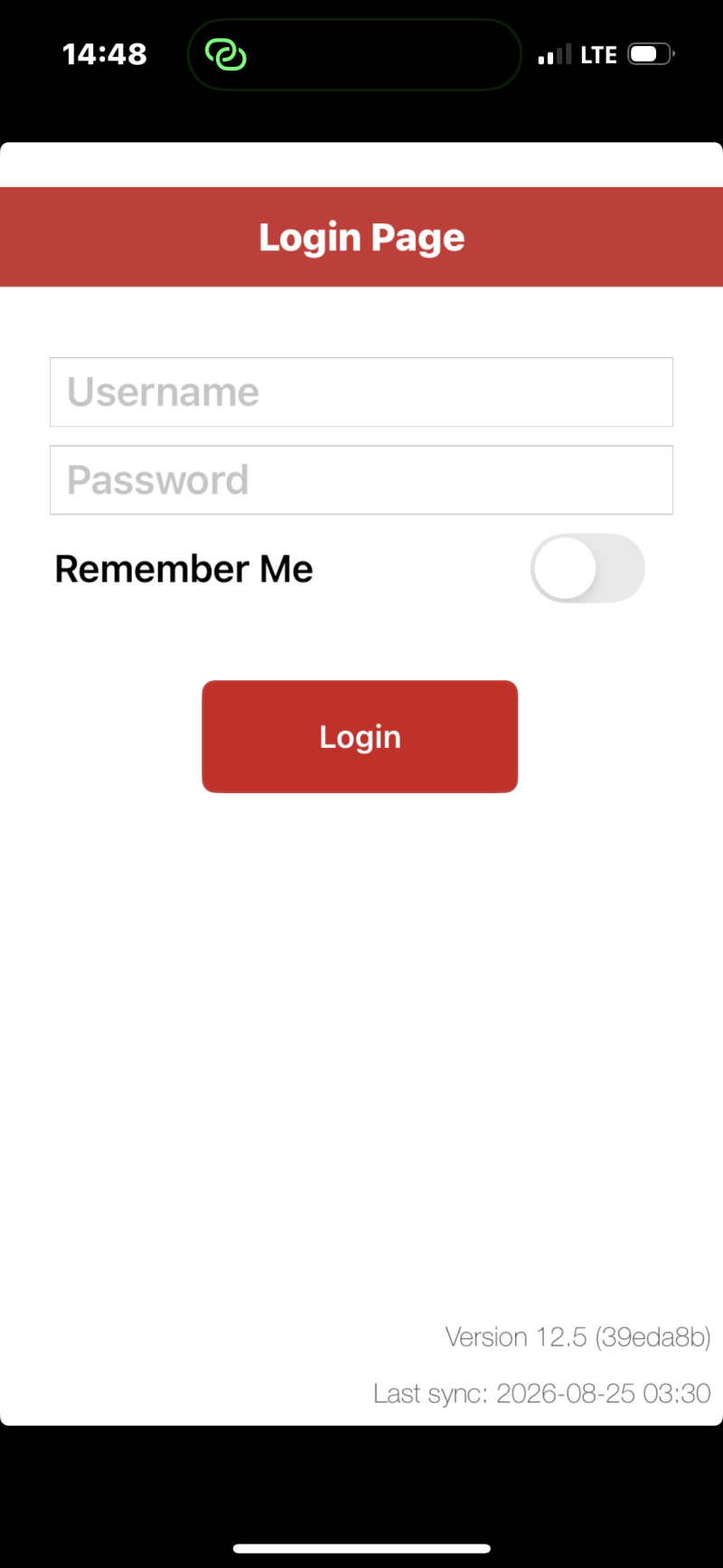
This is the Login Page for the Asset Insp app. This will be the same as you use on the computers in the office.
Typically, the login is the last 6 of your last name, the first letter of your first name, then our Employee ID. Example, mine would be benefij111997.
Your password will be the same as you use on the computer. These passwords expire every 3 months. If it has been longer then 3 months since you have been on a computer, you will need to either change the password using the Reset/Unlock app, or goto a computer in the office and reset it there using the old password to login, and change password to update it.
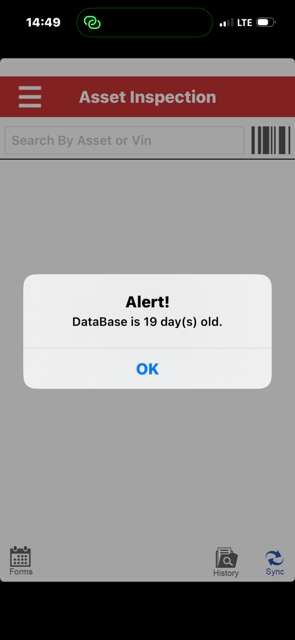
The first time you login to the Asset Insp app, it will say Alert! Database is 200 something days old. you will have to hit OK in blue there in the center, then Sync on the bottom right, it will download the database off all the assets. You will need to tap the screen every few seconds so it does not black out. If the screen blacks out you will have to start the Sync download over. Once it completes you will have all the assets in the company up to the time that you sync in your app.
Only time you will need to resync after that will be if you receive an asset that is newer then the last Sync you did. If you put an asset in, and it doesn't pull up, and it looks real new, more then likely you will need to resync again.
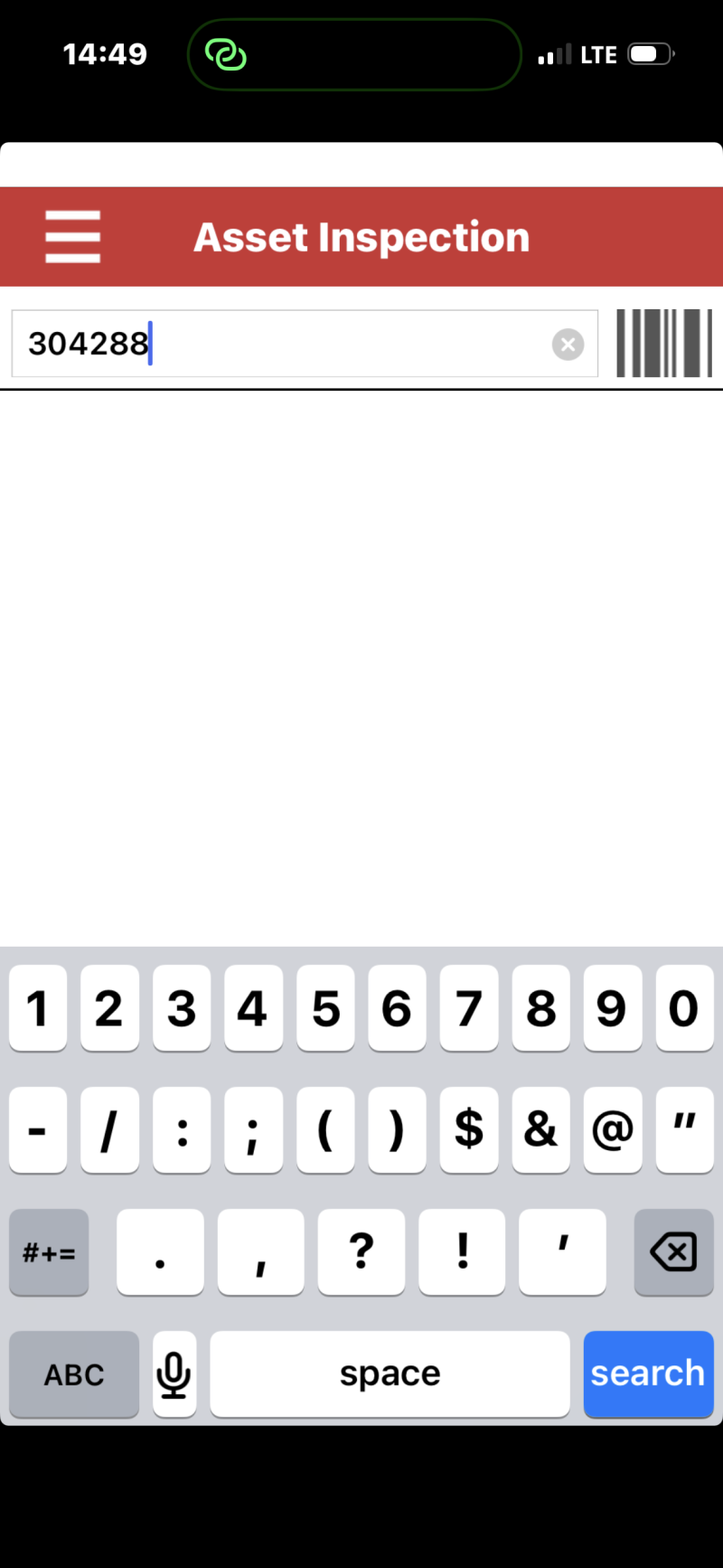
After you sync (or not) you will get this blankish screen. You will need to put the asset number you wish to do your DVIR on. Note, some equipment is only the last numbers after a dash. Like old Hydrochem equipment is like AM10-14070, the asset number will only be '14070'. don't put the AM10- part or it won't find it.
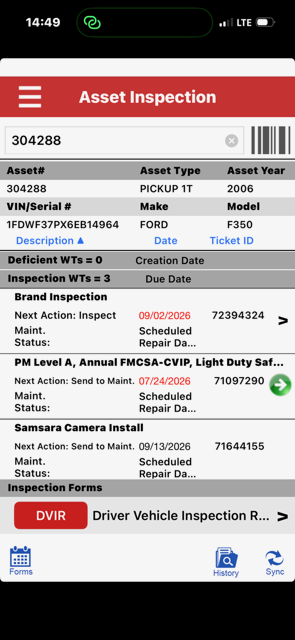
once you get the number in, you MAY have to hit the blue search button where your Enter key would be. After the number is in you will be presented with this screen.
If you look towards the bottom of the screen, you see the red [DVIR] button. That is what you will hit to start doing your DVIR on that piece of equipment.
This screen also some some other helpful info:
- VIN Number
- Action Items
- Year, Make, Model
- Forms - Where you can do Brand Insp or Gate Logs
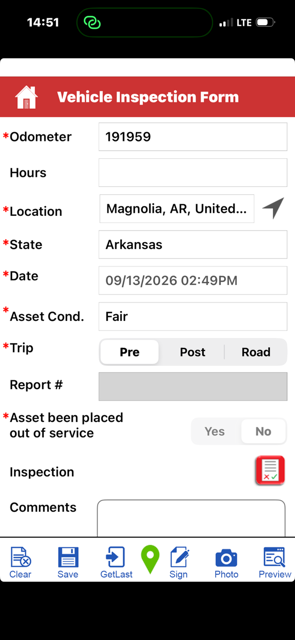
Next you will be presented with this screen which is the actual form you will need to fill out.
Only the items with red stars next to them are required to proceed.
Odometer- You will put the vehicle Mileage here
Location - Hit the black arrow and your gps will fill this one for you
State - will present a drop down, select the state that you are in
Date - Hit the center 'today' for it to fill this in for you
Asset Cond. - Good is a nearly new truck, Fair is most of our equipment, Excellent is Brand new equipment
Trip - will mostly be Pre
Asset been placed out of service - No (only actual OOS equipment needs a yes on this...)
then hit the red paper in the box next to Inspection which will take you to the next screen
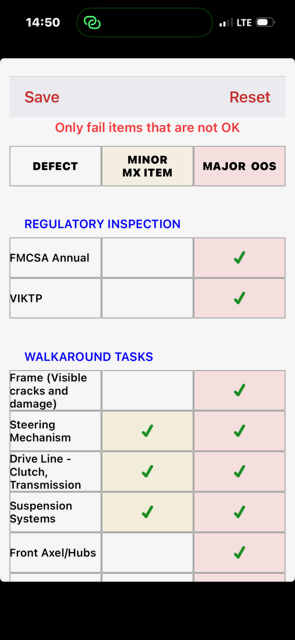
This is here you will mark items which are not up to snuff. Careful as some items will force your equipment out of service.
I your wipers are bad, this is where you would put stuff like that.
When you finish, click 'Save' on the top left.
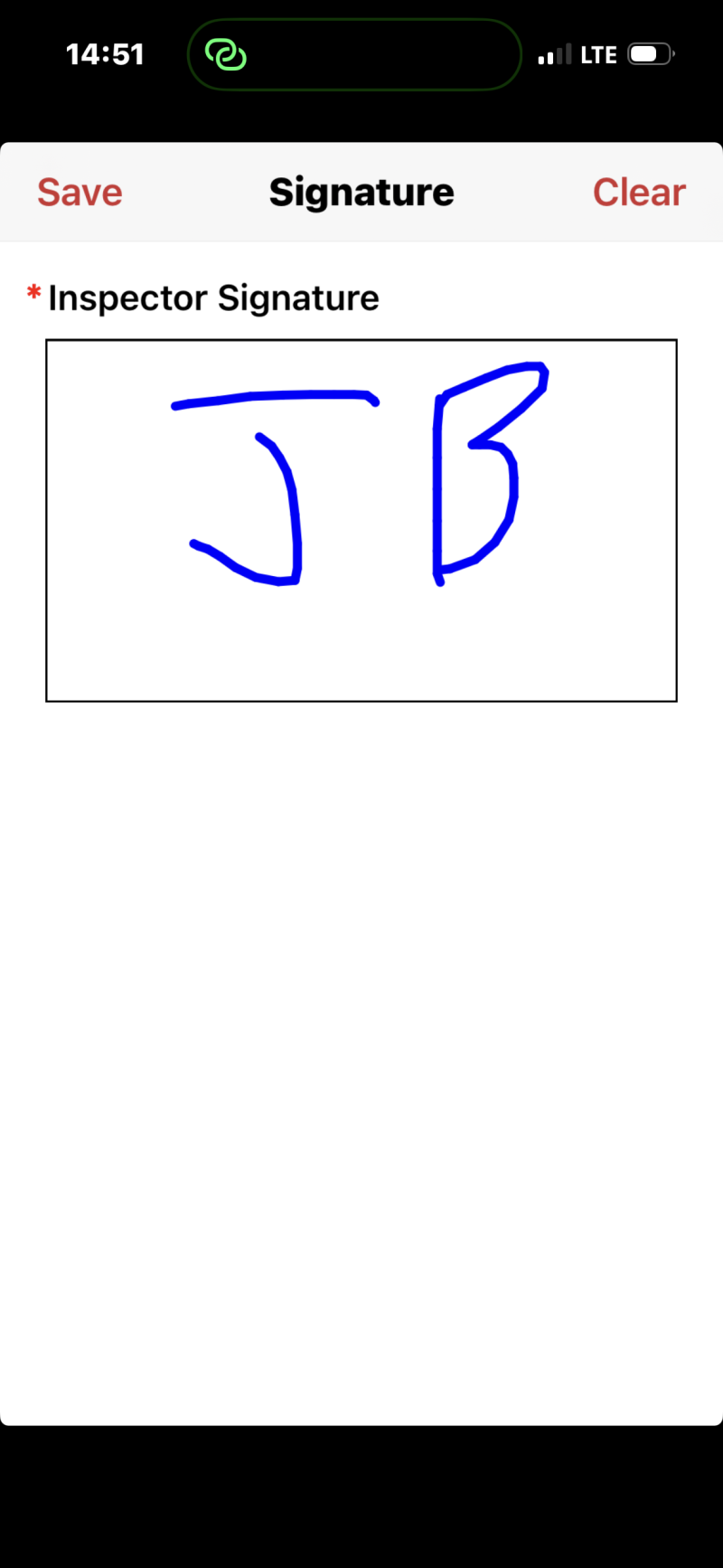
Down at the bottom of your screen you should see 'Sign' with what looks like a piece of paper and a pen writing on it. You only need to put you initials in here signing that you agree with what you put in the DVIR form.
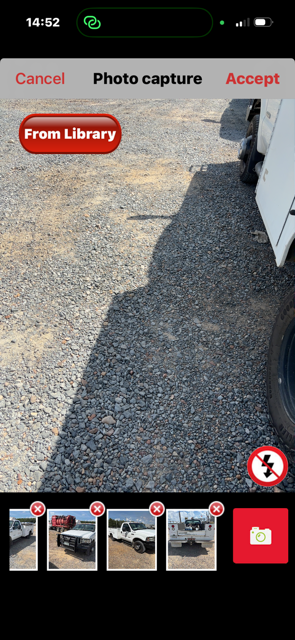
next to 'Sign' on the bottom is 'Photo' with the picture of a camera. Here you will take 4 pictures of the asset.
Front
Back
Drivers side
Passengers side.
If the asset is an item, then top, bottom, side, side...
You are only allowed to upload 4 photos. It will allow you to take more, but you will have to red X the extra ones you don't want to send.
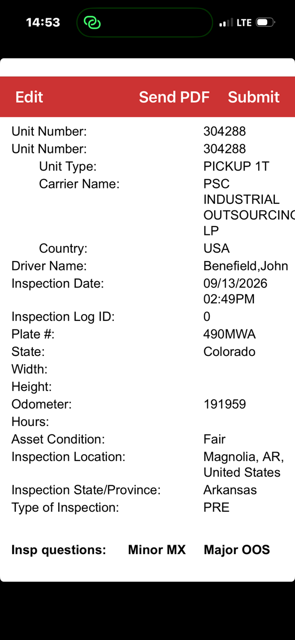
Lastly, hit Preview in the bottom right, beside 'Photo'.
This will bring up this screen so you can review what is going to be sent into the system. If you agree with everything YOU put in, hit Submit.
One note: on the bottom, you can hit 'GetLast' wich has a box with an arrow going into it, and it will bring up the last items that were submitted for this asset. You may want to review what the last driver put on his DVIR.
Let me know if you have any questions, or if anything is unclear.
Thanks